# Add a Signature to Smartermail Webmail
## Add a Signature to Smartermail Webmail
\
1\. **Let's get started by logging in to your webmail account.** You can typically reach your webmail login with IQComputing at or alternatively via
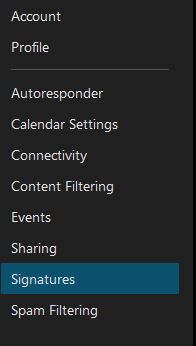
Once you are logged in select the **Settings icon**  from the top navigation bar and then go ahead and **select Signatures**.
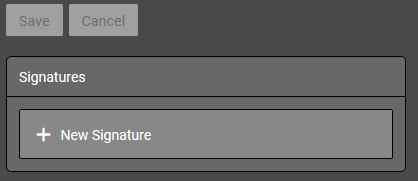
2. Now click on the **New Signature button**.
3. The Signature form should appear and **you can now set up your own custom signature**!
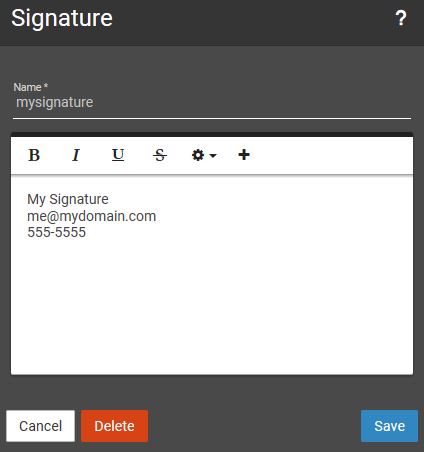
Once you are happy with your custom signature give it a name and click "**Save**" at the lower right of the signature form.
4. You are now ready to add your signature to new outgoing messages. Let's go ahead and **select your new signature** from the signature drop down in a new message (doing this should add your saved custom signature to the new message window).
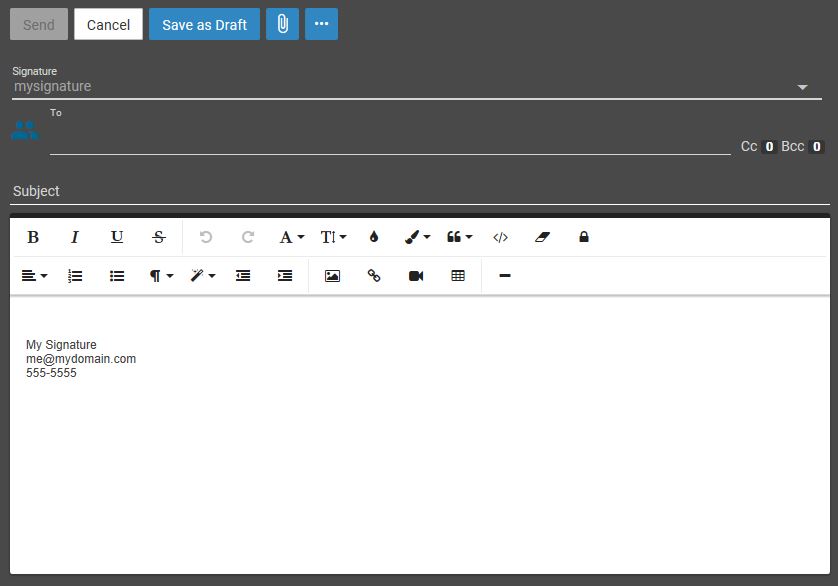
Go ahead and **give your signature a test** by drafting a test message to yourself to see it in action!
***
## REFERENCES
*