Develop Servlets with Tomcat on XAMPP
I. Tomcat Setup
1. Start the Tomcat Service
Press enter or click to view image in full size
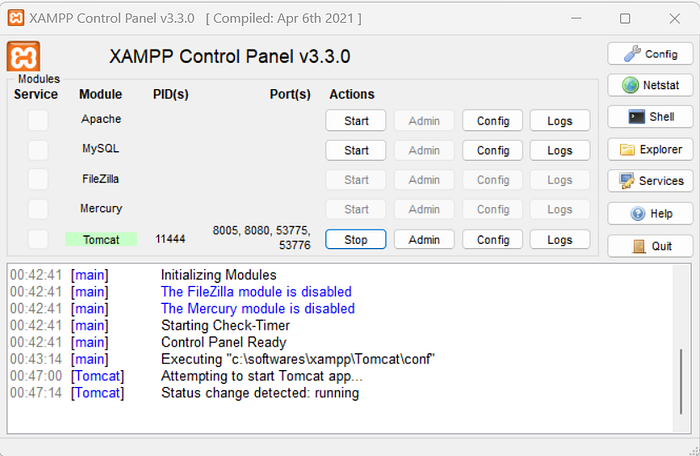
The server has been initiated and is actively receiving requests, prepared to deliver responses on port 8080.
2. You should now be able to see the below page on your browser on localhost:8000 / 127.0.0.1:8080 :
Press enter or click to view image in full size

3. Manager Setup: Access the tomcat-users.xml file found in the C:\xampp\tomcat\conf\tomcat-users.xml file, remove the commenting from the specified role and user, and update the password to a memorable one.
Press enter or click to view image in full size

4. Access the manager application from the browser using localhost:8080/manager or from the front end.
Press enter or click to view image in full size

The Tomcat Web Application Manager will showcase all applications residing in the webappsfolder. (C:\xampp\tomcat\webapps)
II. Developing and Deploying the Servlet
Open the webapps folder in VSCODE.
Press enter or click to view image in full size

2. Install the Extension Pack for Java plugin.
3. Create Java Project.
Press enter or click to view image in full size

4. Choose No Build Tools followed by webapps folder as Project Location.
Get Aditya Padhi’s stories in your inbox
Join Medium for free to get updates from this writer.
Subscribe
Project Name: auth [Can be any name without spaces and hyphens]
Press enter or click to view image in full size

Note: webapps folder must be open when creating the project so that the project named auth can be created inside the folder.
VSCode will automatically open the auth folder in a separate window. Now go ahead and close the webappsfolder window.
5. Modify the .vscode/settings.json file to incorporate the necessary adjustments for compiling and placing the class files in a suitable location within the WEB-INF, enabling Tomcat to recognize them.
6. Now copy servlet-api.jar from the Tomcat library path xampp\tomcat\lib and place the same in the lib folder inside the project path.
VVIMP Note: In an application development lifecycle, libraries are required in two places one during the compilation and one during the running of the instance. During compilation VSCode picks the libaries from the folder path we provide in settings.json i.e the project `auth\lib` path of the application but while the application is running in the server Tomcat expects the library to be present in the `tomcat\lib` folder. So the jar must be kept in both the locations or VSCode must be provided with the appropriate path `tomcat\lib` directory for the successful compilation of a java servlet.
7. Create a folder structure in the source src folder for the application.
src\com\fire\App.java
8. Upon saving the App.java file, a directory named WEB-INF\classes is automatically generated, and the App.class file is also located within the same folder.
Not required: Compiling the old way with all libraries from lib:
9. Add web.xml with the following content to the WEB-INF folder.
WEB-INF\web.xml
10. Refresh the manager page & Reload the auth application if required and click on the /auth link.
Press enter or click to view image in full size

Result:
Press enter or click to view image in full size

Task: Now add JSON library to the lib directory in both tomcat/lib and auth/lib and test the working of the library.
Conclusion:
In wrapping up our exploration of servlet development with Tomcat and XAMPP on Windows, we’ve navigated through the fundamentals of setting up your environment and crafting dynamic web applications.
REFERENCES
Last updated