1. Install Python
1. Install Python
Download the latest Windows x86-64 executable installer from https://python.org
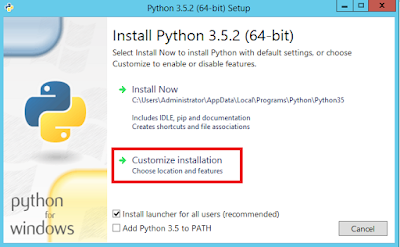
Double-click the Python installer. If you get a security warning at this point, click “Run” to continue.
In the Python Setup dialog that appears, click “Customize Installation”
On the Optional Features step, leave the default settings and click “Next”
On the Advanced Options step, make the following changes:
Check the “Install for all users” box (note that this will also check the “Precompile standard library” box)
Check “Add Python to environment variables”
In the input box below “Customize install location” change the value to the following:
C:\Python35
Click “Install”
When the installation is complete, click “Close”
Confirm the Python installation works by typing python --version on a new command prompt (open a new command prompt so that Env variables viz. PYTHONPATH is loaded). The command will output the Python version installed on your computer.
Last updated