6. Install IIS with CGI

circle-info

What is IIS?

Internet Information Services (IIS) is an extensible web server created by Microsoft for use with the Windows NT family to serve HTML pages or files. That is, IIS would accept request from a remote clients computers and respond with the requested data. IIS is to Windows, what Apache is to Linux/MacOS.Even if you already have IIS installed, you may need to go through these steps to install the CGI feature if it wasn’t installed as part of the original IIS installation.

1. Installation Steps

  1. Open the Control Panel

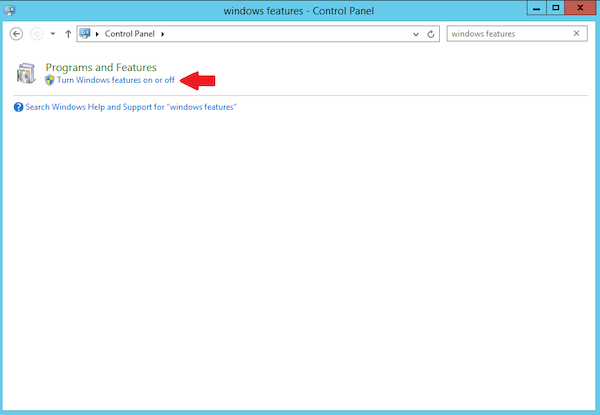
  2. In the search box in the top right, type “windows features” (without the quotes)

  3. In the search results under “Programs and Features” click “Turn Windows features on or off.” This launches the Add Roles and Features Wizard. arrow-up-right

  4. On the “Before you begin” step, click “Next”

  5. On the “Select installation type” leave the “Role-based or feature-based installation” radio button selected and click “Next”

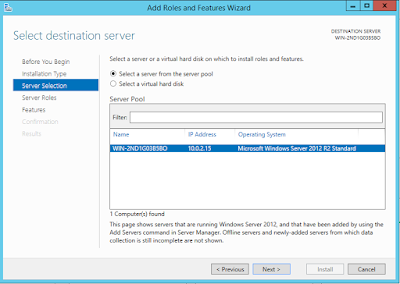
  6. On the “Select destination server” step, leave the current server highlighted and click “Next” arrow-up-right

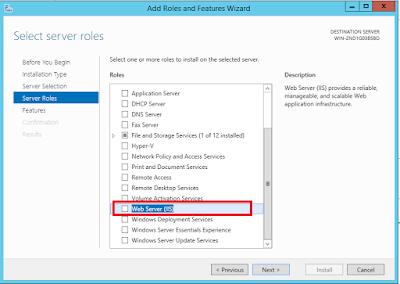
  7. On the “Select server roles” step, scroll to the bottom of the list and check “Web Server (IIS)” arrow-up-right

  8. In the “Add features that are required for Web Server (IIS)?” dialog that appears, leave the “Include management tools (if applicable)” checkbox checked and click “Add Features”

  9. On the “Select server roles” step, now that “Web Server (IIS)” is checked, click “Next”

  10. On the “Select features” step, leave the defaults and click “Next”

  11. On the “Web Server Role (IIS)” step, click “Next”

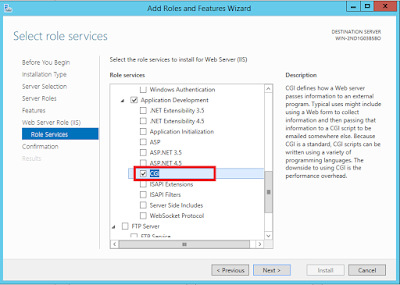
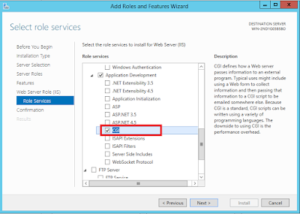
  12. On the “Select role services” step, scroll down to “Application Development,” expand that section, and check the “CGI” box. This will also check the “Application Development” checkbox. With “CGI” checked, click “Next.” arrow-up-right
  13. On the “Confirmation” step, click “Install”

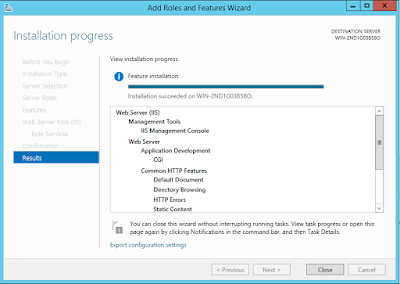
  14. Once the installation completes, click “Close” arrow-up-right

  15. Close Server Manager

  16. Close Control Panel

2. Verify the IIS Installation

  1. Open a web browser on the server

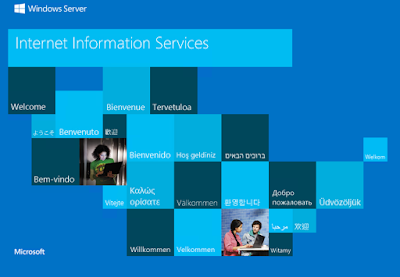
  2. Enter http://localhostarrow-up-right in the address bar and press Enter. You should see the default IIS page. arrow-up-right
  3. If you don’t see the default IIS page:

    1. Open Control Panel

    2. Type “services” in the search box

    3. Under “Administrative Tools” click “View local services”

    4. Scroll to the bottom of the list and ensure you see “World Wide Web Publishing Service” listed, and that the status is “Running”

TIP: To open the IIS Manager:

  1. Click the Windows button

  2. Click on Administrative Tools

  3. Double-click Internet Information Services (IIS) Manager(You would need the IIS Manager at several points, so remember these steps.)

Last updated