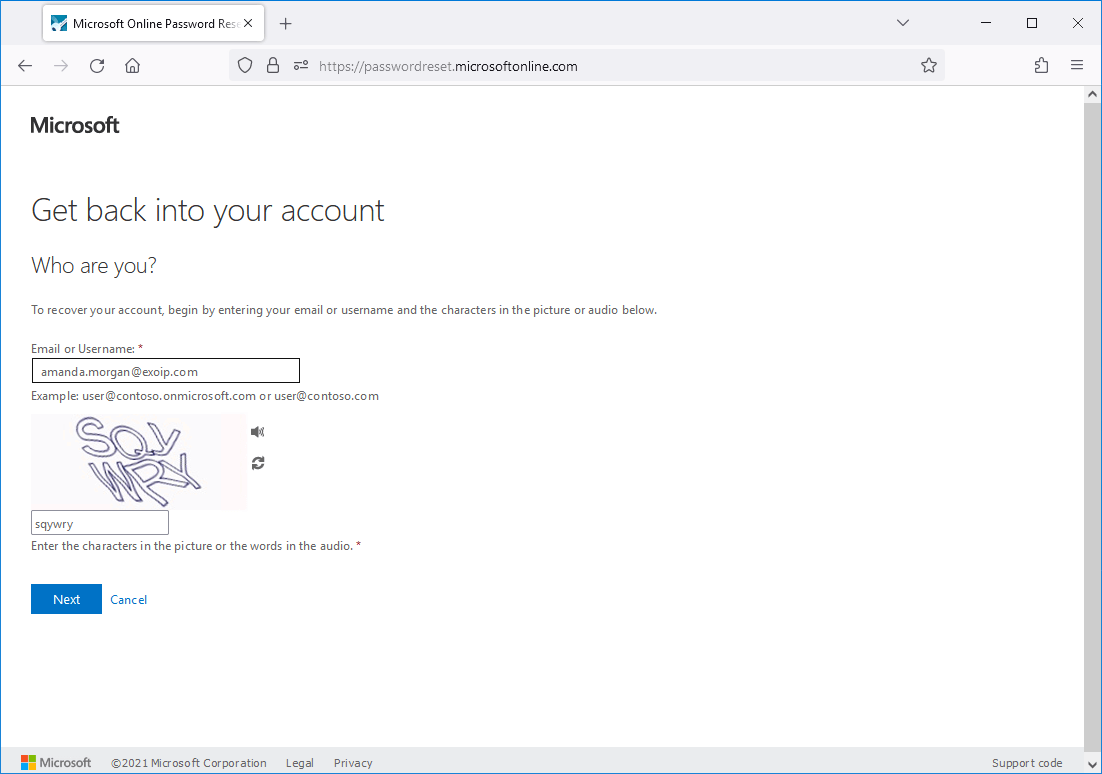
Enable Microsoft Entra Self-Service Password Reset (SSPR)
Self-Service Password Reset (SSPR)
Before you start to implement Self-Service Password Reset (SSPR) for the users, it’s good to know where you need to enable SSPR:
Cloud-only tenant: Enable SSPR in Microsoft Entra ID
Hybrid deployment: Enable SSPR in Microsoft Entra ID, enable password writeback in Microsoft Entra Connect Sync, and enable password writeback in Microsoft Entra ID
Self-Service Password Reset license requirements
Check which Self-Service Password Reset features are available for your organization license in the table below:
Feature
Microsoft Entra ID Free
Microsoft 365 Business Standard
Microsoft 365 Business Premium
Microsoft Entra ID P1 or P2
Cloud-only user password change When a user in Microsoft Entra ID knows their password and wants to change it to something new.
✓
✓
✓
✓
Cloud-only user password reset When a user in Microsoft Entra ID has forgotten their password and needs to reset it.
☓
✓
✓
✓
Hybrid user password change or reset with on-prem writeback When a user in Microsoft Entra that’s synchronized from an on-premises directory using Microsoft Entra Connect wants to change or reset their password and also write the new password back to on-prem.
☓
How to enable Self-Service Password Reset in cloud-only tenant
To enable Self-Service Password Reset in cloud only tenant, follow the steps below:
Sign in to Microsoft Entra admin center
Expand Identity > Protection > Password reset
Click on Properties
Select All
Click Save
Note: We recommend you enable Self-Service Password Reset for All users. It’s one of the recommendations from the Microsoft Secure Score.

Click on Authentication methods
Select 2
Click Save

You did successfully configure Self-Service Password Reset for the cloud-only tenant. Remember to test the self-service password reset in the last part in the article.
Do you have a hybrid deployment (on-premises and cloud)? Follow the next step.
How to enable Self-Service Password Reset in Hybrid deployment
To enable Self-Service Password Reset in Hybrid deployment, follow these steps:
1. Enable Self-Service Password Reset in Microsoft Entra ID
Make sure you enable Self-Service Password Reset in Microsoft Entra ID, as shown in the previous step before you proceed further.
2. Enable password writeback in Microsoft Entra Connect Sync
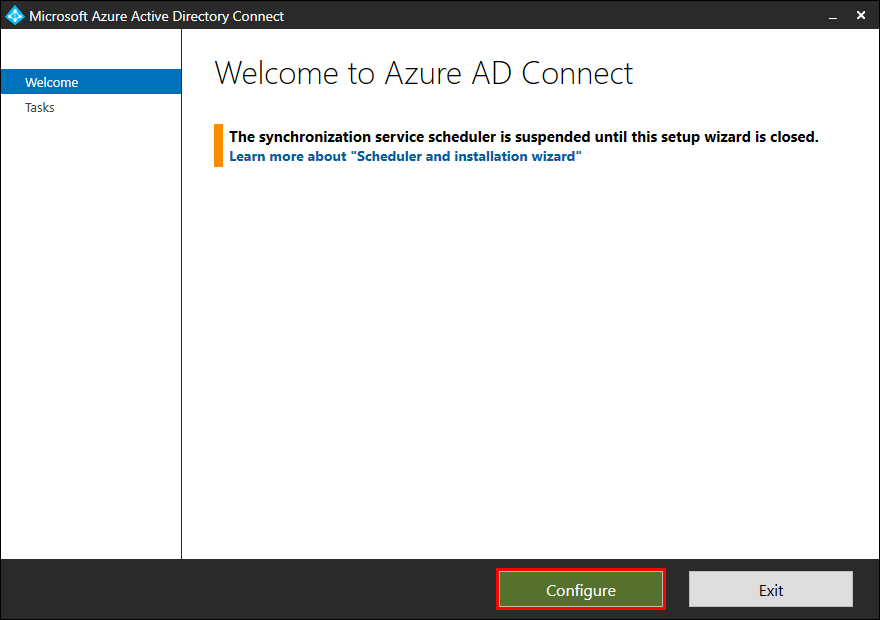
Sign in to Microsoft Entra Connect server
Start the application Azure AD Connect
On the setup wizard welcome screen, click on Configure

Click Customize synchronization options
Click Next

Enter your Microsoft Entra ID global administrator credentials
Click Next

Click a couple of times on Next to go through the wizard till you reach the Optional Features screen
Check the checkbox Password writeback
Click Next

Click Configure

The configuration did complete successfully
Click Exit

3. Enable password writeback in Microsoft Entra ID
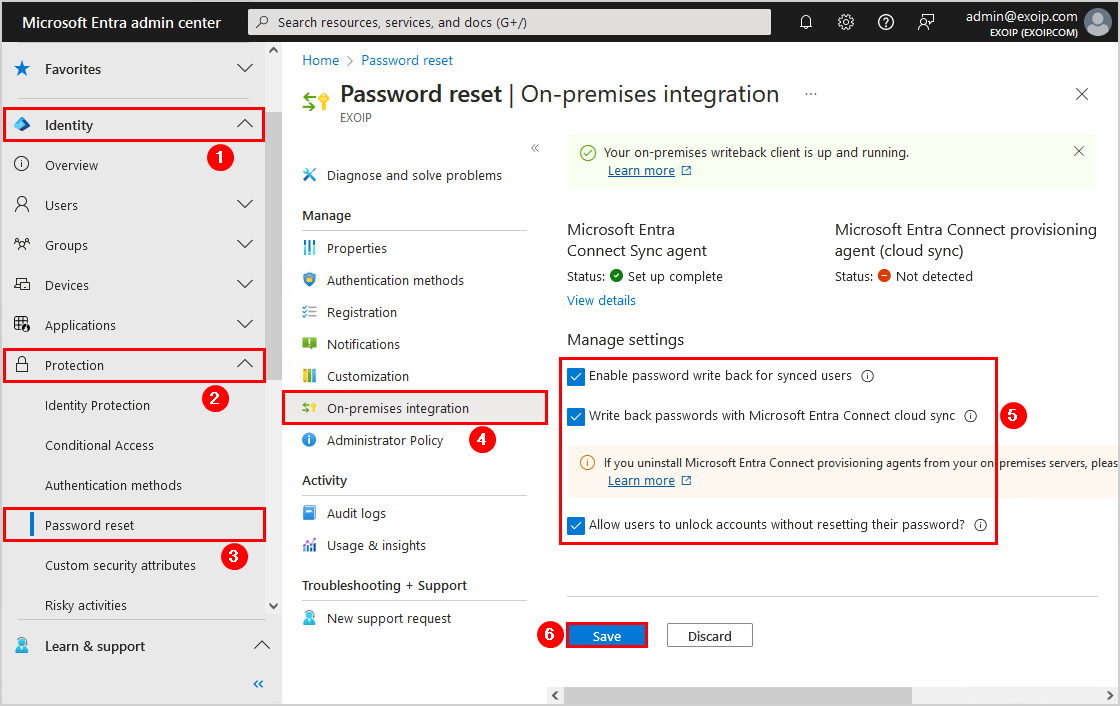
To enable password writeback in Microsoft Entra ID, follow the steps below:
Sign in to Microsoft Entra admin center
Expand Identity > Protection > Password reset
Click on On-premises integration
Select all checkboxes
Click Save

4. Set minimum password age policy
Password policies in the on-premises AD DS environment may prevent password resets from being correctly processed.
The group policy for Minimum password age must be set to 0 for password writeback to work most efficiently.
Start Group Policy Management Console (gpmc.msc) on the Domain Controller.
Browse to Computer Configuration > Policies > Windows Settings > Security Settings > Account Policies > Password Policy.
Double-click on the policy Minimum password age and set it it 0 days.

Run Command Prompt as administrator and use the gpupdate /force command.
You did successfully configure Self-Service Password Reset for the Hybrid environment.
Test Self-Service Password Reset
After it’s set up, the users can use the link https://aka.ms/ssprsetup to reset their password.
The users can register their authentication methods from the link https://aka.ms/ssprsetup. After it’s set up, they can use the link https://aka.ms/sspr to reset their password.

They can also change their password from https://aka.ms/mysecurity, and it will write back to on-premises.

Read more: Secure MFA and SSPR registration with Conditional Access »
REFERENCES
Last updated
Was this helpful?